Avoid the 150 Widget Limit: BigCommerce Page Builder for Store Teams
BigCommerce Page Builder is the native, browser-based drag-and-drop editor for Stencil themes, and you open it at Storefront → Themes → Customize with Store Design permissions. Use it for theme-compatible visual and content work: banners, product callouts, layout tweaks. The moment you need a new region, a structural layout change, or something the theme wasn’t built to support, that’s your cue to edit theme files directly or bring in a developer.
TL;DR:
- Page Builder only supports editing within theme-defined regions; adding new regions requires code modifications and developer involvement.
- The platform caps pages at 150 widgets and overall store widget count at 100,000, so highly complex pages can impact performance.
- Using Global Regions for recurring elements simplifies updates and reduces manual edits across multiple pages.
- Avoid stacking over 100 widgets on a page, as it significantly risks slowing down mobile load times and hampers user experience.
- Custom scripts and third-party integrations should be added via the HTML widget, but unoptimized code can undo overall page performance advantages.
Table of Contents
- Where to Find BigCommerce Page Builder and How It Works
- Theme Styles, Widgets, and Layers: The Three Building Blocks
- Which Widgets to Use and When
- Widget Limits, Theme Constraints, and When to Stop Using Page Builder
- How to Build and Publish a Page With Page Builder
- Best Practices Recommended for Page Builder Work
- Connecting Third-Party Apps and Custom Scripts to Page Builder
- When Page Builder Is Enough, and When It Isn’t
- Get BigCommerce Design Support From Quicktoimpress
- Where to Verify BigCommerce Page Builder Details
- Sources
- FAQ
Where to Find BigCommerce Page Builder and How It Works
Open Page Builder from your control panel by going to Storefront, then Themes, then clicking Customize on the theme you want to edit. You’ll need Store Design permission on your account; without it, the Customize button either won’t appear or will be grayed out.
Once inside, you’re working in one of two modes. Design Mode is where you make layout and style changes: dragging widgets, adjusting Theme Styles, rearranging sections. Preview Mode flips the editor into a simulation of the live storefront, letting you click links, test buttons, and interact with carousels before anything goes public. Skipping Preview Mode is how stores end up publishing a hero banner with a dead link.
The interface itself has four working parts:
- A live preview pane showing your storefront as customers will see it
- Theme Styles, the global palette controlling colors, fonts, and buttons
- A widget library you drag directly onto the page
- A top toolbar with save, publish, and undo controls
One warning that catches teams off guard: Page Builder does not support simultaneous editing, a key consideration for BigCommerce SEO Automation when optimizing content updates. If two people open the same page in separate browser tabs, one person’s changes can silently overwrite the other’s. Treat it like a single-editor document, not a shared spreadsheet.
Theme Styles, Widgets, and Layers: The Three Building Blocks
Page Builder runs on top of BigCommerce’s Stencil theme framework, and everything you touch falls into one of two categories. Theme Styles are global: change the primary button color once, and every button storewide updates. Widgets are local: a hero banner on your homepage doesn’t affect the hero banner on a category page, even if they look identical.
That distinction saves you from a common mistake. New Page Builder users often try to fix a color problem widget by widget when the real fix is one Theme Styles change. Widgets, meanwhile, are what most of your actual page building will involve, and they support most core page types:
- Homepage
- Product pages
- Category pages
- Brand pages
- Standalone web pages
- Blog posts and search results (theme dependent)
- Cart page (theme dependent)
As you stack more widgets onto a busy page, the Layers tool becomes essential. It gives you a list view of every widget on the page in stacking order, which is far easier to navigate than scrolling a long visual layout hunting for one buried text block. Think of it as the outline view for your page.
For merchants running custom builds, developers can extend the widget library itself. BigCommerce’s Widgets API lets a developer inject new widget types beyond the default set, and a schema property can expose custom configuration fields right inside the Page Builder interface. That means a developer-built widget can still be edited by a non-technical merchant through the same drag-and-drop panel everyone already uses. It’s one of the more underused parts of the platform: most stores never touch custom widgets, but agencies building for multi-location or enterprise clients use them constantly to standardize modules across dozens of pages.
Which Widgets to Use and When
Not every widget deserves equal screen time, and picking the wrong one for the job is where a lot of storefronts start looking cluttered instead of clean. Here’s how the common ones break down in practice:
- Hero banner. Reserve it for a single, clear call to action above the fold. Two competing messages in one hero banner is a classic conversion killer; pick one offer and one button.
- Carousel. Good for showcasing multiple promotions in limited space, but every additional slide is a trade-off against load speed and accessibility. If a customer never scrolls past slide one, slides two through five are wasted weight.
- Product widget. Links directly to a SKU and pulls live pricing and imagery, so it stays accurate even after you update inventory.
- Product Set widget. Built for curated carousels, like “customers also bought” or a themed collection, without manually re-adding items every time stock changes.
- Layout widget. Splits a section into columns and lets you nest other widgets inside, which is how most multi-column feature sections and comparison layouts get built without touching code.
- HTML widget. The escape hatch for embeds, third-party scripts, or custom markup Page Builder doesn’t natively support.
Text and image widgets support inline editing, meaning you click directly into the widget on the live preview and type, rather than digging through a separate settings panel. That’s fast for copy tweaks but easy to overdo. If you find yourself fighting the text widget to force a layout it wasn’t designed for, that’s usually a sign you need the HTML widget or a layout widget instead.
Pro Tip: Before adding a carousel, ask whether a single strong hero image with one static message would outperform it. Carousels feel comprehensive to the merchant building them and often underperform with the customer scrolling past them.
Widget Limits, Theme Constraints, and When to Stop Using Page Builder
Page Builder only places widgets inside regions the theme has already defined. If a theme has no region for, say, a sidebar promotion block, dragging a widget there simply isn’t possible. Creating a brand-new region means editing the Stencil template files directly and registering that region in code, which is developer work, not drag-and-drop work.
There are hard numeric ceilings too. BigCommerce caps pages at a maximum of 150 widgets per page, and the Widgets API enforces a store-wide limit of 100,000 widgets total. Global Regions, which show up as labeled purple boxes inside the editor, let one widget appear across multiple pages at once, which is how most stores stay well under that per-page ceiling instead of duplicating the same banner everywhere.
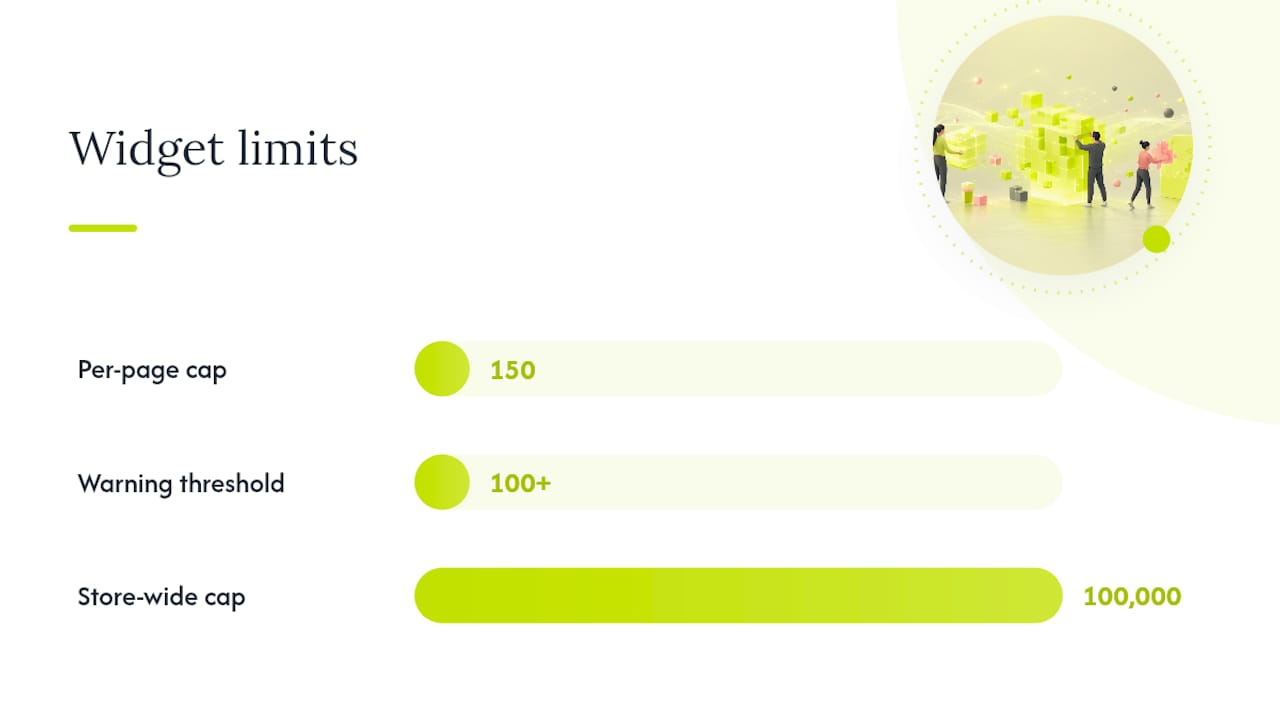
Watch for this: a page loaded with 100+ widgets isn’t just close to a platform limit, it’s almost certainly a performance problem for shoppers scrolling through it on mobile data.
Practical signals that it’s time to stop pushing Page Builder and start editing theme files or hiring a developer:
- You need a layout structure the current theme regions don’t support
- You’re forcing a widget to do something outside its design just to avoid touching code
- You need pixel-level control that the theme’s CSS doesn’t allow
- You’re building the same custom module across dozens of pages and need it centralized
Editing theme files directly, available through the Edit Theme Files option in the control panel, handles smaller structural tweaks. For a full redesign with total layout freedom, BigCommerce’s own guidance points toward custom Stencil themes or Catalyst, its composable storefront framework built on Next.js and React. That’s a real fork in the road for growing stores, and it’s usually where an internal team’s time is better spent calling in outside engineering help.
How to Build and Publish a Page With Page Builder
Building a page in the wrong order is the fastest way to end up redoing work. Follow this sequence instead:
- Set Theme Styles first. Lock in your colors, typography, and button styles globally before you touch a single widget, so nothing you build has to be restyled later.
- Create your layout skeleton. Drop in Layout widgets to establish your column structure before filling in content.
- Add and configure widgets. Drag in your hero, product, or text widgets one section at a time, filling in settings as you go rather than placing everything first and configuring later.
- Check the Layers panel. Confirm your stacking order matches what you intended, especially on pages with 10 or more widgets.
- Switch to Preview Mode. Click through every button, link, and carousel slide, and check the layout on a narrower browser window to catch mobile issues.
- Save as a draft if you’re not ready to go live, then return later to finish.
- Publish, then immediately reload the live storefront yourself to confirm it rendered as expected.
If something breaks after publishing, BigCommerce lets you restore original theme styles to reset back to defaults, which is your safety net when a global style change causes unexpected damage across the site.
Pro Tip: Publish small changes incrementally rather than batching a dozen edits into one publish. If something looks wrong afterward, you’ll know exactly which change caused it instead of hunting through a long list of edits.
Best Practices Recommended for Page Builder Work
Set your global Theme Styles before anyone on the team touches a widget. Doing it in the opposite order is how stores end up with three slightly different shades of the same brand color scattered across pages, because each person who built a section picked their own.
Favor Global Regions for anything that repeats, like a promo banner or announcement bar, instead of copying the same widget onto every page individually. One update in a Global Region propagates everywhere; ten duplicated widgets mean ten manual edits every time marketing changes the message.
A few more habits worth building into your team’s process:
- Set a performance budget for third-party scripts and embeds added through the HTML widget, and audit it quarterly
- Keep a running log of who changed what and when, especially with multiple editors on the account
- Bring in developers early for new theme regions, custom templates, or anything touching Catalyst, rather than after Page Builder has already hit its limits
Pro Tip: Treat your Page Builder changes like code commits. A one-line note (“moved hero CTA above fold, tested on mobile”) saves the next person on your team an hour of guessing why something looks different.
Connecting Third-Party Apps and Custom Scripts to Page Builder
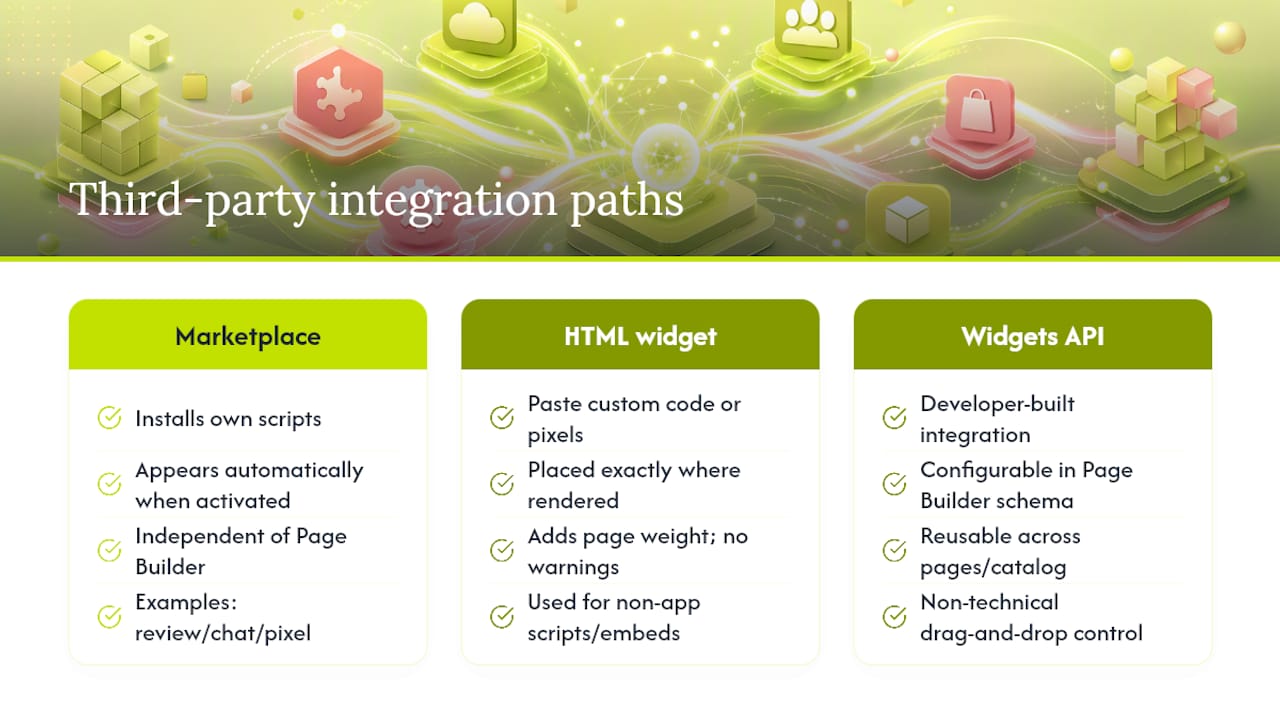
Most third-party functionality reaches your storefront through one of two doors: the app marketplace, which installs its own scripts and interface elements independent of Page Builder, or the HTML widget, which lets you drop in custom code, tracking pixels, or embeds directly onto a page. A review widget, a chat tool, or a marketing pixel typically arrives through the app install process and appears automatically once activated, without needing manual placement inside Page Builder at all.
Custom scripts that don’t come from an installed app are a different story. Those get embedded through the HTML widget, placed exactly where you want them to render on the page. That flexibility is genuinely useful, and it’s also where things quietly go wrong: every script you paste in adds page weight, and Page Builder doesn’t warn you when an embed is dragging down load time. A single unoptimized third-party widget can undo a page’s entire performance advantage.
Custom widgets built through the Widgets API sit in a middle category. A developer builds the integration once, wires it to whatever third-party service or internal tool it needs, and exposes the configuration through Page Builder’s schema so non-technical staff can adjust settings without touching code again. That’s the setup Quick To Impress typically builds for clients running several integrations across a growing catalog, since it keeps the technical complexity behind the scenes while giving the marketing team a normal drag-and-drop control panel to work in.
When Page Builder Is Enough, and When It Isn’t
Page Builder handles the majority of day-to-day storefront work well: seasonal banners, new product launches, landing pages for a campaign. Where teams get stuck is treating it as a substitute for actual platform architecture when a store outgrows its theme’s regions or needs integrations Page Builder was never built to hold.
Quick To Impress works with growing BigCommerce merchants specifically at that inflection point, pairing hands-on growth platform engineering with the judgment to know when a Page Builder tweak is enough and when a custom template or enterprise commerce build is the smarter long-term investment.
— Service
Get BigCommerce Design Support From Quicktoimpress
Quicktoimpress is the alternative to guessing your way through theme limitations. Instead of discovering the hard way that your theme has no region for a new module, an audit up front catches the constraints before they cost you a redesign. We look at your current Page Builder setup, widget count, and theme performance, then scope a sprint around what actually needs developer attention versus what your team can keep handling inside the editor.
Our work spans custom theme builds, new region and template creation, Catalyst and headless migrations, and ongoing retainers for stores that need a technical partner on call rather than a one-off project. If your store fits the multi-location or enterprise profile, that’s exactly where our engineering approach earns its keep, keeping platform work and revenue systems connected instead of siloed. Get in touch through Quicktoimpress to talk through where your current setup stands and what a sprint would look like.
Where to Verify BigCommerce Page Builder Details
For the current UI and step-by-step instructions, check BigCommerce’s own Page Builder support article. Developers extending widgets should reference the Widgets API documentation, and theme-specific behavior is covered in the Cornerstone Theme Manual.
FAQ
Is BigCommerce Page Builder Free to Use?
Yes, Page Builder is included with every BigCommerce plan since it’s built directly into the Stencil theme editor, with no separate app or license required.
Can I Use Page Builder Without Coding Knowledge?
Yes, that’s its core purpose: dragging and configuring widgets and adjusting Theme Styles requires no code, though structural changes beyond the theme’s built-in regions do require editing template files.
Why Can’t I Place a Widget Where I Want It?
Widgets only work inside regions the theme has already defined, so if that spot has no registered region, you’ll need to edit the Stencil template files or bring in a developer to create one.
How Many Widgets Can I Add to One Page?
BigCommerce caps pages at 150 widgets, with a separate store-wide limit of 100,000 widgets total across the Widgets API.
What’s the Difference Between Design Mode and Preview Mode?
Design Mode is for making layout and style changes, while Preview Mode simulates the live storefront so you can click links, test carousels, and catch problems before publishing.