HubSpot Custom Objects: A Practical Setup Guide

HubSpot custom objects let you model business-specific entities, like vehicles, subscriptions, or properties, so they behave like standard objects across the CRM and API. You can build the schema through the HubSpot developer docs API or through the UI’s property editor, and full custom object creation is an Enterprise-tier feature on most hubs. The guidance from Quicktoimpress: create one only when a standard object and its properties genuinely can’t represent the relationship you need. Before you build anything, confirm you actually need a new object rather than:
- A set of custom properties on an existing object
- A new pipeline stage on deals or tickets
- A tag or list segment instead of a whole new record type
Key Takeaways
Custom objects only deliver value when paired with deliberate associations, disciplined property design, and governance that limits schema sprawl before it compounds.
| Point | Details |
|---|---|
| Build only when necessary | Extend standard objects with properties first; create a custom object only for independent, many-to-many entities. |
| Associations are the real value | Define associations before records exist, since workflows can’t act on custom objects without them. |
| Searchable properties are capped | Up to 20 searchable properties per object; plan them around what users actually search for. |
| API-first suits multi-environment teams | Use the schemas API to version and replay schema changes across sandbox and production portals. |
| Quicktoimpress builds and governs the schema | Quicktoimpress designs custom object data models and automation for scaling multi-location and B2B SaaS teams. |
Table of Contents
- 1. When Custom Objects Actually Make Sense
- 2. Designing the Data Model: Properties, Types, and Search
- 3. Building Associations and Association Labels
- 4. Creating the Schema: UI Wizard vs. API
- 5. Managing Records, Associations, and Automation Limits
- 6. Governance, Limits, and the Mistakes That Compound
- 7. Migrating and Updating Custom Objects Without Breaking Production
- 8. Security and Permission Settings for Custom Objects
- 9. Troubleshooting the Issues That Come Up Most
- 10. Advanced Use Cases That Push Custom Objects Further
- 11. How Custom Objects Work With Reporting, Lists, and Marketing Tools
- Quicktoimpress’s View on Building Custom Objects for Scale
- How Quicktoimpress Helps You Build This Right
- Sources
1. When Custom Objects Actually Make Sense
Ask four questions before you touch the data model. Does the entity have a many-to-many relationship with contacts, companies, or deals (a single subscription tied to multiple contacts, for instance)? Does it have its own lifecycle independent of a deal closing? Will you have repeating records per contact or company (multiple properties owned by one landlord)? Do you need to report on this entity in isolation, without it getting buried inside deal or ticket counts?
If you answered yes to two or more, a custom object is probably the right call. Ten scenarios where teams commonly reach for one:
- Vehicles owned by a customer across a multi-location dealership network
- Subscriptions with their own renewal dates, separate from the originating deal
- Properties or units managed by a real estate or property management firm
- Locations for a franchise brand, each with its own health metrics
- Equipment or assets tracked for maintenance and warranty
- Course enrollments for an education or training provider
- Shipments tied to orders in an enterprise commerce setup
- Warranties with expiration logic separate from the purchase record
- Memberships with tiered benefits that change over time
- Usage records for a B2B SaaS product billed on consumption
The rule of thumb: every new object adds ongoing maintenance, permission scoping, and reporting complexity. Extend an existing object with custom properties first; build a new object only when the data genuinely doesn’t fit.
2. Designing the Data Model: Properties, Types, and Search
Every custom object needs a primary display property, the label users see in record cards and associations, plus one or two secondary display properties that give context at a glance. A vehicle object might display VIN as primary and make/model as secondary.
Field type choice matters more than most admins expect. The property editor supports text, number, date, dropdown/enumeration, calculation, rollup, HubSpot user, and file properties, each with its own validation rules and visibility controls. Use rollups to pull aggregated values from associated records instead of duplicating data as free text.
- Text fields for identifiers and short descriptions
- Enumeration for fixed status lists (avoids typo-driven reporting gaps)
- Calculation and rollup properties for anything derived from associated objects
- HubSpot user fields when you need an internal owner distinct from the record’s contact owner
You get up to 20 searchable properties per custom object, and any field marked sensitive won’t surface in global search regardless of that limit. Internal names are permanent once set, so name deliberately. Group related properties together so the record view doesn’t turn into a wall of fields.
Pro Tip: Export existing values before changing a property’s field type. HubSpot’s own property documentation warns that converting field types can silently invalidate historical data.
3. Building Associations and Association Labels

Associations are where custom objects earn their keep, or where they quietly fail. A custom object with no defined relationship to contacts, companies, or deals sits in the CRM as a data island nobody finds through normal workflows.
Set them up under Data Model → Associations, where you define both the object pairing and, optionally, a role label on each side.
- Many-to-many: a subscription associated with multiple contacts (household members) and vice versa
- One-to-many: a property associated with one landlord company and many tenant contacts
- Labeled roles: “Primary Driver” vs. “Secondary Driver” on a vehicle-to-contact association, so reports and workflows can filter by role instead of guessing
Skipping this step is the single most common setup mistake. Without an association definition, that custom object can’t trigger workflows tied to a contact or deal, and it won’t show up in the associated-records panel where reps expect to find it.
4. Creating the Schema: UI Wizard vs. API
You have two real paths to a working custom object, and the right one depends on how many environments you’re managing.
- UI path: Go to Settings → Data Model → Objects → Create Object. You’ll name the object, set the primary display property, choose an icon, and define initial properties and associations in a guided wizard. This suits a single production portal with no staging environment.
- API path: Use the schemas API to POST a schema definition that includes
objectTypeId,fullyQualifiedName, primary display property, andassociatedObjects. This lets you version the schema as code. - Hybrid: prototype in the UI to validate the model with stakeholders, then codify the finalized schema through the API for repeatable deployment across sandboxes.
Custom object schemas run on the same underlying infrastructure as standard objects, which is why they support the same CRUD operations once defined. If you manage more than one HubSpot instance, whether for QA testing or multi-brand rollouts, API-first schema creation is the only way to keep environments in sync without manual re-entry.
5. Managing Records, Associations, and Automation Limits
Once the schema exists, records behave like any other CRM object: you can create, batch create, upsert, update, and delete them through the objects API. Upsert is the one to know well, since it lets you match on a custom unique identifier property rather than an internal record ID, which matters when you’re syncing from an external billing or inventory system.
- Include associations directly in the create/upsert payload to link a new record to its contact or company in one call
- Update associations separately after creation using the associations endpoints when relationships change over time
- Batch endpoints reduce API call volume and handle rate limits more gracefully than looping single creates
Here’s the constraint that catches teams off guard: workflows can only create or act on custom object records when a defined association exists between the triggering object and the custom object. Build the association first, or your automation will silently fail to fire.
Pro Tip: Test upsert logic in a sandbox with a handful of records before pointing a production sync at it. A wrong unique-identifier mapping creates duplicate records fast, and cleanup is tedious.
6. Governance, Limits, and the Mistakes That Compound
HubSpot doesn’t publish a hard cap on the total number of custom objects you can create, but that’s not permission to build freely. Every object adds a line item to your permission sets, your reporting menus, and your onboarding documentation.
Global search only surfaces properties you’ve explicitly marked searchable, and account-wide search performance degrades when every object exposes dozens of fields with no curation. Plan searchable properties around what users actually type into the search bar, not everything that seems useful.
A short governance checklist keeps schema sprawl in check:
- Document naming conventions before the first property gets created
- Restrict schema-editing permissions to a small admin group
- Require a change log entry for any property type change or deletion
- Test new objects in a sandbox portal before touching production
The most common failure pattern combines three mistakes: too many overlapping objects, associations added as an afterthought, and free-text fields used where an enumeration belonged.
| Point | Details |
|---|---|
| Object count | No hard limit exists, but every object adds ongoing reporting and permission overhead. |
| Association timing | Define associations at schema creation, not after records already exist. |
| Free-text overuse | Enumeration and rollup fields prevent typo-driven reporting errors that free text invites. |
7. Migrating and Updating Custom Objects Without Breaking Production
Schema changes on a live custom object carry real risk, mostly because HubSpot treats some property edits as destructive. Changing a field’s type, from text to number, for instance, can invalidate existing values rather than converting them cleanly. Export the property’s current data before you touch its type, every time, no exceptions.
For structural changes, work in three passes. First, add new properties or associations alongside the old ones rather than replacing them outright. Second, backfill data into the new fields with a batch update through the objects API, verifying record counts match before and after. Third, deprecate the old properties only once every workflow, report, and list view that referenced them has been repointed. Rushing that last step is how dashboards go quiet without warning.
If you’re moving a custom object’s schema between a sandbox and production portal, treat the schema definition itself as a versioned artifact. Export the schema JSON from the schemas API, review the diff against production, and apply changes through the API rather than manually rebuilding fields in each portal. This is the practical case for an API-first workflow: a documented schema you can diff and replay is far safer than a UI wizard clicked through twice by two different people.
Association changes deserve the same caution. Adding a new association label is nondestructive, but removing one that workflows or reports depend on will break those dependencies immediately. Search for the association’s usage in active workflows before deleting it, not after something stops firing. For multi-portal rollouts across franchise or multi-location setups, stage the migration in a single pilot portal first, confirm reporting and workflows behave as expected, then replicate the validated schema to the remaining portals.
8. Security and Permission Settings for Custom Objects
Custom object permissions work on the same role-based model as standard CRM objects, but the isolation cuts both ways. You can scope access tightly, which is valuable for sensitive entities like contracts or warranties, but a permission set built for contacts and deals won’t automatically extend to a new custom object. Every object needs explicit view, edit, and delete permissions configured for each user role that touches it.
Sensitive properties get an extra layer through the property editor, where you can mark individual fields as sensitive data. Sensitive properties are excluded from certain exports, hidden from users without the right permission, and kept out of global search results regardless of whether they’re flagged as searchable. This matters most for objects holding financial figures, health information, or anything with regulatory exposure.
Team-based access control lets you restrict a custom object to specific teams rather than opening it to every seat in the portal. A property management firm might restrict its “Lease Agreements” object to the legal and finance teams while leaving it invisible to sales reps who have no operational reason to see it. Set this up under the object’s permission settings in Data Model, not through workarounds like hiding it from navigation, which doesn’t actually restrict API or search access.
The most overlooked gap is API key and private app scoping. A private app with broad CRM scopes can read and write custom object records even if the underlying users lack UI permissions, so audit which integrations hold write access to sensitive custom objects the same way you’d audit user permissions. Review scopes whenever a new integration goes live, and revoke access from any private app no longer in active use.
9. Troubleshooting the Issues That Come Up Most
Most custom object problems trace back to one of three root causes: a missing association, a search misconfiguration, or a property type mismatch between what the UI expects and what the API sent.
If a workflow silently fails to enroll a custom object record, check the association definition first. HubSpot’s automation engine can only act on a custom object when a defined association exists between the triggering object and the target. This is the single most common support ticket teams file, and it’s rarely a bug, it’s a missing relationship in the data model.
If users report they “can’t find” a custom object record through global search, check the searchable properties list before assuming a permissions issue. Records only surface for fields explicitly marked searchable, capped at 20 per object, and sensitive fields never appear in search regardless of that setting.
API errors around property values usually mean a type mismatch: sending a string to an enumeration field that expects an internal value, not the display label, is a frequent culprit. Always reference the internal property name, not the label shown in the UI, when writing API payloads.
- Workflow not triggering: confirm the association exists and check the trigger’s object type matches
- Records missing from search: verify the property is flagged searchable and isn’t marked sensitive
- API write failures: confirm you’re passing internal property names and valid enumeration option values
- Duplicate records after sync: check your upsert logic is matching on the correct unique identifier property
Run a small batch of test records through the full workflow, creation, association, workflow enrollment, before trusting a new schema with a full data migration.
10. Advanced Use Cases That Push Custom Objects Further
Beyond the standard entity-modeling cases, teams doing more sophisticated work combine custom objects with calculation properties, multiple association labels, and external system syncs to solve problems standard objects can’t touch.
A usage-based SaaS company can model a “Usage Record” custom object associated with both the company and the relevant subscription object, using rollup properties to sum monthly consumption back onto the subscription record for billing accuracy checks. This gives revenue teams a live view of overage risk without exporting data to a spreadsheet.
Multi-location retail and franchise brands often build a “Location” custom object holding operational metrics, foot traffic, staffing levels, local promotions, associated to both a company (the franchisee) and a deal object (for renewal or expansion opportunities). Reporting on locations in isolation, rather than buried inside company-level rollups, becomes possible only because the object exists separately.
Enterprise commerce organizations sometimes model “Shipment” as a custom object tied to orders, using association labels to distinguish “Origin Warehouse” from “Destination” when multiple fulfillment centers are involved. Combined with calculation properties tracking transit time, this turns fulfillment data into something the CRM can actually report on rather than something buried in a logistics platform disconnected from the customer record.
The common thread across all of these: the object alone does nothing. The value comes from associations, rollups, and calculation properties working together, which is exactly why schema design deserves more planning time than most teams give it.
11. How Custom Objects Work With Reporting, Lists, and Marketing Tools
Custom objects plug into HubSpot’s standard reporting tools once associations are in place, but the depth of that integration varies by feature, and knowing where the seams are saves you from building a report that quietly excludes data.
Custom report builder supports custom objects as a primary data source, letting you build reports and dashboards using custom object properties alongside associated contact, company, or deal data. Rollup properties are what make cross-object reporting readable. Without them, you’re stuck building reports that only show custom object counts with no context from the records they’re tied to.
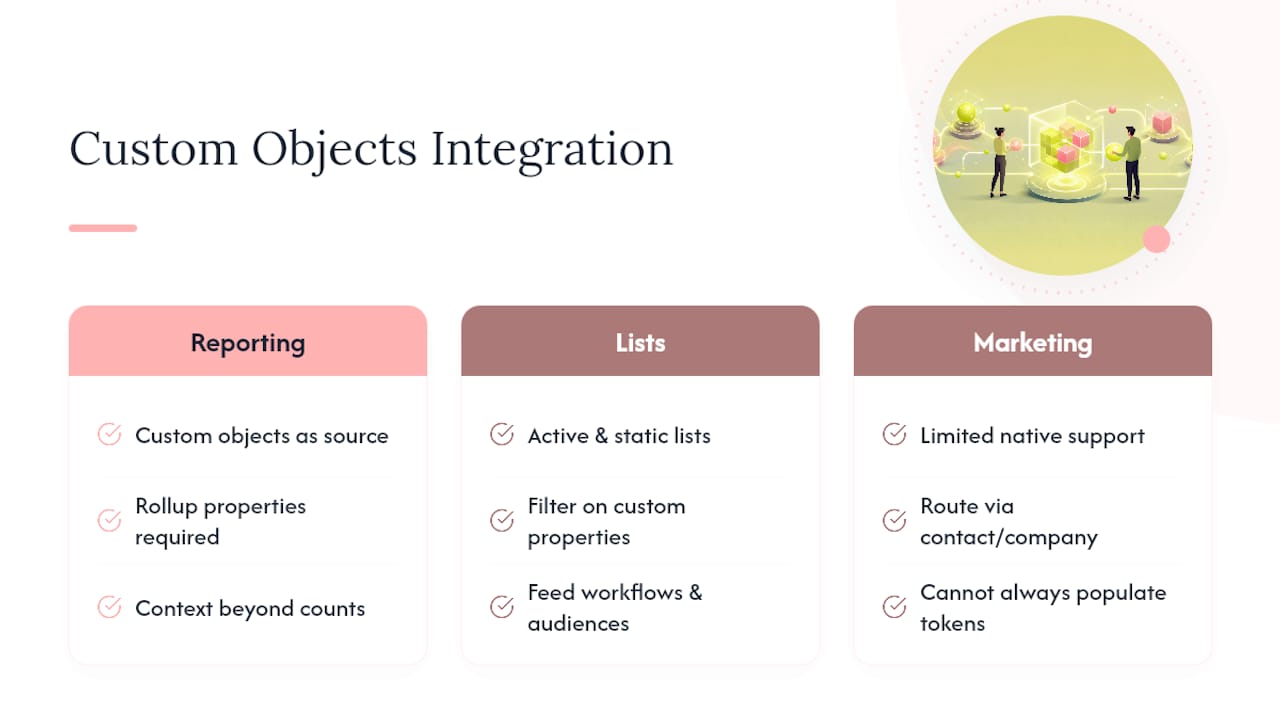
List segmentation works too: you can build active or static lists filtered on custom object properties, then use those lists to trigger workflows or feed audiences into marketing tools. This is how a training provider might build a list of contacts associated with a “Course Enrollment” custom object where the completion date property indicates an active enrollment, then use that list for a nurture sequence.
Marketing email and forms have more limited native support for custom object properties directly, so most teams route data through an associated contact or company record when the destination is an outbound campaign. This is a real seam worth knowing before you assume a custom object property can populate a personalization token the same way a contact property does.
Quicktoimpress’s View on Building Custom Objects for Scale
The teams that get the most out of custom objects treat the schema as a living contract, not a one-time build. Start with the minimum viable object, prove the association model works with real records, then expand. API-first schema definitions make that iteration safer because you can diff and redeploy instead of clicking through a wizard from memory. Governance isn’t a separate phase, it’s what keeps the fifth object as clean as the first.
— Service
How Quicktoimpress Helps You Build This Right
Quicktoimpress is the technical partner for teams who want their HubSpot schema built once, correctly, instead of patched together over a year of workarounds. We handle revenue operations work daily, which means custom object design, association mapping, and API-first schema deployment aren’t a one-off project for us, they’re a repeatable process we bring to every engagement.
If you’re weighing whether a custom object fits your data model, or you’ve already built one and it’s not behaving the way you expected, that’s exactly the kind of problem our team solves for multi-location brands, B2B SaaS companies, and enterprise commerce organizations. Our capabilities cover schema design through to workflow automation, and delivery capacity is aligned to what you actually need built, not a bucket of unused hours. See how Quicktoimpress works with teams like yours, or check how we work to get a sense of engagement structure before you book a conversation.