HubSpot Salesforce Integration: An Admin’s Setup Guide

Yes, HubSpot and Salesforce integrate bi-directionally. Standard objects like contacts, companies, deals, and activities sync in both directions once you connect the two systems, and you control exactly which records move between them.
Before you flip that switch, though, three things need to happen. Test the connection in a Salesforce sandbox first. Build inclusion segments so you’re not syncing your entire database on day one. And map lifecycle stages to Salesforce lead status and opportunity stages before anyone touches production data.
Skip any of those and you’ll spend your first month firefighting instead of running clean reports.
Do this now:
- Connect a sandbox org, not production, for your first pass
- Create a dedicated connected user in Salesforce
- Draft inclusion segments before you map a single field
- Set lifecycle stage and lead status mapping in writing
The stakes are real: HubSpot’s Professional and Enterprise tiers cap daily API calls, but specific limits should be confirmed with current official documentation, and a poorly scoped sync will burn through that allotment fast.
Key Takeaways
Getting HubSpot and Salesforce to sync reliably depends less on the install wizard and more on inclusion segments, lifecycle state mapping, and disciplined API budgeting.
| Point | Details |
|---|---|
| Test in sandbox first | Connect a Salesforce sandbox before production to catch mapping errors without touching live data. |
| Build inclusion segments early | Limit which records sync to control API usage and keep data hygiene manageable. |
| Treat lifecycle mapping as a state machine | Define allowable stage transitions before enabling sync to prevent silent overwrites. |
| Use a dedicated connected user | Clone a System Administrator profile in Salesforce instead of authenticating with a personal login. |
| Bring in a partner for complexity | Quicktoimpress supports custom object sync, middleware, and ongoing revenue operations for teams without a dedicated admin. |
Table of Contents
- Before You Get Started: Requirements and Permissions
- How Do You Connect HubSpot to Salesforce?
- Which Objects Sync and How Do You Map Fields Correctly?
- How Do You Import Salesforce Records and Test the Sync?
- How Do You Monitor Sync Health and Fix Errors?
- Ongoing Governance and Scaling the Integration
- What This Integration Actually Rewards
- How Quicktoimpress Handles HubSpot and Salesforce Together
- Frequently Asked Questions
- Sources
Before You Get Started: Requirements and Permissions
Both platforms need the right tier before you install anything. HubSpot’s Salesforce integration works across most paid tiers, but custom object sync and manual resync controls are gated to higher-tier plans, so confirm your subscription supports the features your team actually needs.
On the Salesforce side, permissions matter more than most admins expect. Admin guides consistently recommend cloning your System Administrator profile to create a dedicated connected user rather than authenticating with someone’s personal login. Personal accounts get deactivated, passwords rotate, and permission sets change. When that happens to your connected user, the sync breaks silently.
Before installation, spend time on planning:
- Define your inclusion segments. Decide which HubSpot lists actually need to reach Salesforce.
- Inventory every field you plan to map, including custom fields and picklists.
- Estimate your realistic API call volume against your plan’s daily limit.
- Assign one person ownership of the integration. Shared ownership means no ownership.
If your Salesforce org enforces IP restrictions on connected apps, don’t try to whitelist HubSpot’s IPs. HubSpot uses dynamic IP ranges, so a static whitelist will eventually break the connection. Configure a proper network access policy instead.
Pro Tip: Run the API math before you install, not after. A 50,000-contact database syncing every field change in near real time can chew through a Professional-tier allotment faster than most teams expect.
How Do You Connect HubSpot to Salesforce?
Installation itself is straightforward. The complexity is in the decisions you make along the way.
- Install the HubSpot package in Salesforce. From HubSpot’s integrations settings, you’ll launch the Salesforce connector and get redirected to authenticate.
- Authenticate with your connected user, not a personal login. This is the credential you created during the planning phase.
- Choose sandbox or production. HubSpot offers a checkbox during setup to connect to a Salesforce sandbox instead of your live org. Use it. Every admin guide on this topic agrees on one point: test before you touch production.
- Verify the sync card appears in your HubSpot integrations dashboard once authentication completes.
- Check the initial sync logs to confirm HubSpot is reading your Salesforce schema correctly.
If you installed with the wrong user, you can change the connected user later without reinstalling the whole integration. It’s a setting inside the Salesforce integration panel, not a fresh install. Worth knowing before you assume you have to start over.
Sandbox testing catches problems production testing would only reveal after damage is done, things like a required Salesforce field that HubSpot doesn’t populate, or a picklist value that doesn’t exist on both sides. A mismatched sandbox sync error costs you nothing. The same error in production means bad data landing in a report your VP is looking at.
Pro Tip: Screenshot your field mapping plan before installation and compare it against what actually appears in the sync settings UI. HubSpot’s default mappings don’t always match what you assumed they’d be.
Which Objects Sync and How Do You Map Fields Correctly?
HubSpot contacts sync to Salesforce leads or contacts, companies sync to accounts, deals sync to opportunities, and tickets sync to cases. That’s the default object model, and it triggers automatically once a record enters your sync scope.
Sync scope is where inclusion segments earn their keep. Rather than syncing every contact in your database, you build inclusion segments (lists) that define exactly which records qualify for sync. A B2B SaaS company might sync only contacts with a lifecycle stage of Marketing Qualified Lead or later, leaving cold leads and unqualified form fills out of Salesforce entirely. This isn’t just tidiness. It directly reduces your API call volume, since every record eligible for sync is a record HubSpot has to check and reconcile.
Field mapping has a few traps worth knowing before you hit save:
- Avoid mapping formula fields as the sync target; formula fields are calculated, not stored, and syncing to them usually fails silently or throws recurring errors.
- Picklist and state and country field mismatches are the single most common mapping error. If Salesforce expects “California” and HubSpot sends “CA,” that record errors out.
- Map required Salesforce fields explicitly. If Salesforce requires a field HubSpot doesn’t send, every new record creation fails.
- Document every mapping decision somewhere outside the tool itself, since HubSpot’s UI won’t tell you why a mapping was made a certain way six months from now.
Lifecycle-stage alignment deserves its own treatment, because this is where most integrations quietly go wrong. Rather than treating the mapping as a one-time dropdown exercise, treat it as a state-machine design problem: define every allowable transition between HubSpot lifecycle stages and Salesforce lead status or opportunity stage values, and decide which system is allowed to override the other. Without that discipline, a sales rep manually changing a Salesforce opportunity stage gets silently overwritten by a HubSpot workflow the next sync cycle, and nobody notices until pipeline reporting looks wrong.
How Do You Import Salesforce Records and Test the Sync?
Importing existing Salesforce records into HubSpot is usually your first real move after connecting. The import process brings in the fields you map during setup, and for any record that falls inside an inclusion segment, that import can trigger an immediate sync back to Salesforce rather than waiting for the next scheduled check.
Run through this sequence in your sandbox before touching production:
- Import a representative sample, roughly 50 to 200 records, rather than your entire database.
- Check for duplicate creation. Deduping logic between the two systems isn’t always intuitive, and this step catches most of the surprises.
- Verify lifecycle mapping behaves as designed. Move a test record through each stage transition and confirm it lands correctly on both sides.
- Check your API usage in the sync dashboard to see whether your sample volume tracks with your projected production load.
- Manually resync a couple of individual records to confirm that function works before you need it under pressure.
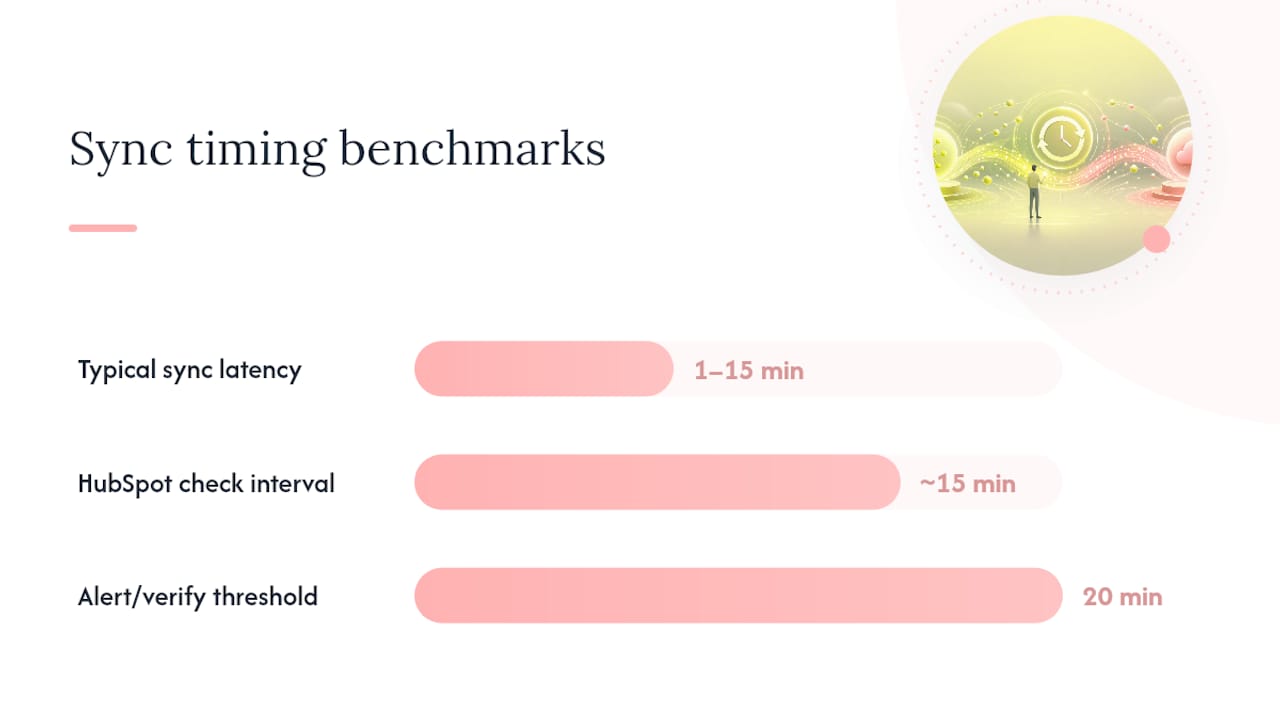
Sync latency typically runs 1 to 15 minutes since HubSpot checks for updates roughly every 15 minutes rather than syncing instantly. If a record hasn’t synced after 20 minutes, that’s your signal to check the Sync Health dashboard instead of assuming it’s still processing.
Pro Tip: Import your smallest, messiest segment first, the one full of duplicate accounts and inconsistent naming. If your mapping survives that, it’ll survive the clean data too.
How Do You Monitor Sync Health and Fix Errors?
HubSpot’s Sync Health dashboard is where you’ll live once the integration is running. It shows your current API call usage, active sync errors, and lets you allocate a portion of your Salesforce API budget specifically to the HubSpot connection, which matters because other Salesforce-connected tools are drawing from the same pool.

Most sync errors fall into a handful of repeat offenders:
| Error type | Likely cause | Fix |
|---|---|---|
| Picklist mismatch | Value exists in one system, not the other | Align picklist values or add a mapping rule |
| Missing required field | Salesforce requires a field HubSpot doesn’t send | Map the field or make it non-required in Salesforce |
| Permission failure | Connected user lacks object or field access | Review connected user’s profile permissions |
| API limit reached | Sync scope too broad for your plan tier | Tighten inclusion segments, batch large imports |
| Duplicate record creation | Matching rules disagree between systems | Adjust dedupe criteria before next sync cycle |
Reducing your API footprint usually comes down to scope, not cleverness. Tighter inclusion segments mean fewer records checked per cycle. Batching large historical imports instead of pushing them all at once smooths the load. Archiving stale records that no longer need active sync frees up allocation for records that matter.
For anything that recurs for more than a few sync cycles, build a runbook: who checks the error dashboard, how often, and at what point an unresolved error gets escalated to whoever owns the Salesforce org. Without that, error cards pile up quietly until someone in sales asks why a deal isn’t showing up.
Ongoing Governance and Scaling the Integration
Field mappings and automation rules drift over time unless someone owns change control. Assign one person or team as the gatekeeper for any mapping change, and log every change with a date and reason.
A simple monitoring cadence keeps small problems small:
- Daily: Scan the Sync Health dashboard for new error spikes.
- Weekly: Review API usage trends against your allocation.
- Monthly: Audit inclusion segments and lifecycle mapping for drift.
As data volume and custom objects grow, plain field mapping eventually hits its ceiling. That’s the point to evaluate custom object sync, middleware or ETL tools, or a revenue operations partner who’s built this before. Model the real cost of an internal admin’s time against a partner engagement, not just software fees.
Pro Tip: Revisit your inclusion segments every quarter, not just when something breaks. Sales territory changes and new product lines quietly expand what “should sync” means, and nobody updates the segment logic until it’s a problem.
What This Integration Actually Rewards
The advice you’ll find online tends to focus on the install wizard, as if the hard part is clicking the right buttons. It isn’t. The hard part is the state-machine design behind lifecycle stages, and most teams skip it entirely because it feels like extra work before you’ve even seen the integration run.
That’s backward. HubSpot is genuinely the easier platform to adopt, but easier adoption creates a false sense that the integration itself is equally simple. It isn’t. Salesforce rewards structure, and an integration connecting to it inherits that requirement whether you plan for it or not.
What I’d tell any team starting this project: spend more time in the sandbox than feels necessary, and treat your lifecycle mapping document as a contract between departments, not a settings screen. The teams that struggle six months in aren’t the ones with bad tools. They’re the ones who mapped fields quickly and never revisited who owns what happens when the two systems disagree.
Prioritize the boring governance work first. The sync itself is the easy part.
How Quicktoimpress Handles HubSpot and Salesforce Together
If you’ve read this far and realized your team doesn’t have the bandwidth to own inclusion segments, lifecycle state machines, and a weekly error dashboard on top of everything else, that’s a staffing gap, not a failure. Quicktoimpress is a growth engineering partner for teams facing exactly that gap.
We handle full implementation, custom field mapping, custom object sync, and middleware connections when native sync hits its limits, along with ongoing revenue operations retainers for teams that need someone watching the sync dashboard permanently. This work fits particularly well for multi-location brands rolling out HubSpot and Salesforce across several teams at once, and B2B SaaS companies managing complex, multi-stage sales processes where a single lifecycle mismatch can throw off an entire quarter’s pipeline reporting.
If your team lacks a dedicated Salesforce admin, or you’re staring down a custom object sync project with no internal precedent, see our full technical capabilities or check how our engagements are structured to find the right starting point.
Frequently Asked Questions
Does HubSpot Salesforce sync work in both directions automatically?
Yes, once configured. Standard objects like contacts, companies, and deals sync bi-directionally, but only for records inside your defined inclusion segments, not your entire database by default.
How long does hubspot salesforce sync typically take?
Sync latency usually falls between 1 and 15 minutes, since HubSpot checks for updates roughly every 15 minutes rather than syncing instantly on every change.
What’s the biggest mistake admins make with hubspot salesforce field mapping?
Mapping to Salesforce formula fields or ignoring picklist and state and country mismatches. Both cause silent, recurring sync errors that pile up in the error dashboard.
Should I connect production or sandbox first?
Sandbox, always. Test your field mappings, inclusion segments, and lifecycle stage logic on a small sample of records before your connected user ever touches live Salesforce data.
When should I bring in an outside partner instead of managing this internally?
If you lack a dedicated Salesforce admin, need custom object sync, or you’re rolling this out across multiple locations or business units simultaneously, that complexity usually justifies outside implementation support.
Sources
Start with HubSpot’s own installation guide and sync settings documentation, plus the sandbox connection guide and HubSpot CMS plugin roundup for ecosystem context.