Stop Data Drift in HubSpot Lifecycle Stages: A RevOps Governance Playbook

Lifecycle stages in HubSpot track where a contact or company sits in your revenue process, moving through Subscriber, Lead, Marketing Qualified Lead, Sales Qualified Lead, Opportunity, Customer, Evangelist, and Other. They power segmentation, trigger automation, and give marketing and sales a shared handoff point for reporting. If you’re managing lifecycle stages hubspot right now, your immediate move is to open Settings and check the Automate tab and Pipeline Rules before you touch a single record.
TL;DR:
- Most lifecycle stages should be managed by a designated owner, and automations must be reviewed regularly to prevent data inconsistencies.
- Custom stages are useful only if they represent a genuine funnel need; most confusion comes from unclear definitions rather than missing stages.
- HubSpot automatically generates calculated properties like “Date entered” and “Cumulative time” that support reporting on stage duration and engagement.
- Synchronization occurs only from companies to contacts and should be tested carefully to avoid misreporting, especially with third-party integrations.
- Regular governance, clear definitions, and ownership are crucial for maintaining accurate lifecycle data and trustworthy reporting.
Table of Contents
- Understanding HubSpot Default Lifecycle Stages and When to Customize Them
- Creating and Customizing Lifecycle Stages: Permissions and Setup
- Automating Lifecycle Stage Updates and Syncing Across Objects
- Updating Lifecycle Stages Manually, in Bulk, Through Imports, and via Workflows
- Lifecycle Stage Calculated Properties and How to Put Them to Work
- Lead Status vs. Lifecycle Stage: Two Different Jobs
- Migrating From a Custom Property to HubSpot’s Native Lifecycle Stage
- Governance, Common Mistakes, and Controls That Actually Prevent Data Drift
- What Most Teams Get Wrong About Lifecycle Stages
- Sources
Understanding HubSpot Default Lifecycle Stages and When to Customize Them
HubSpot’s default lifecycle stage sequence runs in a specific order, and each stage carries operational weight that goes beyond a simple label. Getting the definitions right, and keeping them consistent across teams, is what separates clean reporting from a mess of disputed handoffs.
- Subscriber: someone opted into content (blog, newsletter) but hasn’t engaged with a product or offer yet. Marketing owns this stage.
- Lead: a contact who has taken an identifiable action, like filling out a form or downloading an asset. Marketing owns it, sales monitors it.
- Marketing Qualified Lead (MQL): a lead marketing has scored or manually flagged as showing real buying intent. Marketing owns the criteria; sales relies on the handoff.
- Sales Qualified Lead (SQL): sales has accepted the lead and is actively working it. Sales owns this and everything nested inside it.
- Opportunity: an open deal exists and is tied to the contact or company. Sales owns the deal, RevOps owns the sync logic.
- Customer: the deal closed and won. Finance and customer success often start caring here too.
- Evangelist: a customer actively referring or advocating, usually tracked manually or through NPS and referral triggers.
- Other: a catch-all for records that don’t fit the revenue funnel, like vendors or partners.
Custom stages make sense when your business genuinely has a funnel HubSpot’s defaults can’t represent, like a multi-product company where a contact becomes a customer of Product A while still moving through the MQL stage for Product B. They don’t make sense as a workaround for lazy definitions. Before adding a stage, ask whether the real problem is a missing stage or a missing agreement on what “qualified” means. Most lifecycle confusion comes from the second problem, not the first.
Creating and Customizing Lifecycle Stages: Permissions and Setup
Only Super Admins can add, edit, reorder, or delete lifecycle stages, and that restriction exists for good reason. A stage deleted without warning can silently break workflows, list segmentation, and dashboards that reference it.
Here’s the path and the sequence to follow:
- Go to Settings → Data Management → Objects → Contacts, then open the Lifecycle Stage tab (the same tab exists under Companies for company-level stages).
- Click Add Stage to create a new value, or select an existing stage to Edit its label.
- Drag stages to rearrange their order if your funnel sequence needs adjusting.
- Before deleting a stage, click Used In to see which lists, workflows, and reports reference it.
- Confirm deletion only after you’ve reassigned or reviewed every dependency the “Used In” check surfaced.
Creating a custom stage automatically generates its own set of calculated properties, including Date Entered and Cumulative Time in that stage, so you can segment and report on it immediately without extra configuration.
Pro Tip: Run the “Used In” check even when you’re just renaming a stage, not deleting one. Renaming doesn’t break automation, but it does confuse anyone reading historical reports where the old label still shows up in exports.
Automating Lifecycle Stage Updates and Syncing Across Objects
HubSpot’s Automate tab is where most lifecycle stage problems either get solved or get created. The settings here control when a record’s stage changes automatically, and misconfiguring even one toggle can quietly overwrite weeks of clean data.
The core automation options are:
- Sync lifecycle stages between companies and contacts, so a company’s stage cascades to its primary associated contacts.
- Set lifecycle stage when a deal is created, typically advancing a contact to Opportunity.
- Set lifecycle stage when a deal is won, advancing the contact or company to Customer.
- Set lifecycle stage when a lead is associated, useful if you run a separate Leads object alongside contacts.
- Pipeline rules, which define the default stage assigned to brand-new records entering a specific pipeline.
The sync between companies and contacts only runs one direction. A company-level update pushes down to its primary contacts, but a contact-level change never pushes back up to update the company. That asymmetry catches a lot of RevOps teams off guard when a report shows a company stuck on “Lead” while half its contacts already show “Customer.”
A few guardrails worth setting before you turn any of this on:
- Decide which object is the source of truth for lifecycle stage (usually contacts, sometimes companies for account-based motions).
- Test automation on a small, non-production list segment before rolling it out account-wide.
- Watch for other integrations, like a marketing automation platform or a data enrichment tool, that also write to Lifecycle Stage and can silently overwrite HubSpot’s own automation.
Updating Lifecycle Stages Manually, in Bulk, Through Imports, and via Workflows
You’ve got five ways to change a lifecycle stage, and each carries different risk depending on scale. Single-record edits work fine for one-off corrections directly on a contact or company record. Bulk edits from an index page let you update hundreds of records at once by selecting them and choosing “Edit” on the Lifecycle Stage property.
Imports let you map a spreadsheet column directly to Lifecycle Stage, which is common during a CRM migration or a database cleanup project. Workflows use a Set property value action, available on Professional and Enterprise subscriptions, to change the stage based on any trigger you define. Chatflows can also set lifecycle stage based on conversation qualification criteria, useful for inbound chat-qualified leads.
- HubSpot tools generally move lifecycle stage forward, not backward, by default.
- To manually set an earlier stage, you typically need to clear the current value first, then set the earlier one.
- Moving a record backward affects legacy “Became a [stage]” date properties, which can distort historical reporting if you’re not careful.
Bulk stage changes deserve a second look before you run them. A rushed bulk edit that misapplies “Customer” to a segment that hasn’t actually closed will pollute every report tied to that stage until someone catches it.
Lifecycle Stage Calculated Properties and How to Put Them to Work
Every stage in HubSpot comes with a matching set of calculated properties that quietly do a lot of reporting heavy lifting once you know they exist.
| Property | What it tells you |
|---|---|
| Date entered [stage] | The exact date a record first hit this stage |
| Date exited [stage] | The date a record left this stage for another one |
| Latest time in [stage] | How long the record’s most recent stint in that stage lasted |
| Cumulative time in [stage] | Total time spent in that stage across every visit, including repeat entries |
The advanced time-based properties (Latest time and Cumulative time) require a Professional or Enterprise subscription. There’s a behavioral quirk worth knowing: a record currently sitting in a stage won’t have a populated “Latest time in stage” value until it actually exits, since HubSpot can’t calculate a duration on something still in progress. That matters for workflow enrollment too, since triggers based on stage duration may not fire the way you expect for records that haven’t moved yet.
Two practical uses show why these properties earn their place in your reporting stack. Build a workflow that creates a task for a rep when “Date entered Sales Qualified Lead” exceeds 14 days with no deal created, catching leads going stale. Or build a report using “Cumulative time in Marketing Qualified Lead” to spot whether your MQL definition is too loose, since leads that linger for months in MQL are rarely as qualified as the label suggests.
Pro Tip: If your SQL to Opportunity conversion rate looks great but your Cumulative time in Sales Qualified Lead keeps climbing, you likely have a lead status problem, not a lifecycle stage problem. The stage isn’t wrong. Reps just aren’t updating what’s happening inside it.
Lead Status vs. Lifecycle Stage: Two Different Jobs
Lead Status isn’t a lifecycle stage. It’s a separate property that tracks sales activity inside the Sales Qualified Lead stage, and confusing the two is one of the more common ways lifecycle reporting gets corrupted.
Default Lead Status options include New, Open, In Progress, Open Deal, Unqualified, Attempted to Contact, Connected, and Bad Timing. Think of it this way:
- Lifecycle Stage answers “where is this record in our overall funnel?”
- Lead Status answers “what is the rep actually doing with this record right now?”
- Use Lead Status for granular rep activity tracking and daily work queues.
- Use Lifecycle Stage for stage-based reporting, automation triggers, and marketing-to-sales handoffs.
- Wire Lead Status changes into workflows freely, but never let a Lead Status update also silently push a lifecycle stage change unless that’s a deliberate rule you’ve documented.
Migrating From a Custom Property to HubSpot’s Native Lifecycle Stage
If your team built a homegrown “Funnel Stage” or “Status” property years ago and never moved to HubSpot’s native Lifecycle Stage property, migration is worth the short-term pain.
- Map every value in your custom property to its closest native lifecycle stage equivalent, documenting edge cases where the mapping isn’t obvious.
- Bulk-set the Lifecycle Stage property using that mapping, ideally starting with a test segment.
- Audit every workflow, list, and report referencing the old custom property, then update or rebuild them against Lifecycle Stage.
- Clear the old property’s active use, and only delete it once you’ve confirmed nothing critical still points to it.
- Consider keeping auxiliary custom metadata (like source-specific qualification notes) if it adds context the native property can’t capture.
Bulk edits and workflow rebuilds both require Professional or higher permissions in most cases, so confirm your subscription tier before committing to a migration timeline.
Governance, Common Mistakes, and Controls That Actually Prevent Data Drift
Lifecycle stage data drifts for the same handful of reasons in almost every account: inconsistent definitions between teams, over-automation that advances records too aggressively, no test environment before rolling out changes, and forgotten integrations that quietly overwrite stages HubSpot just set.
A working governance setup usually includes:
- A documented definition for every stage, written down somewhere both marketing and sales can access, not just tribal knowledge.
- A named lifecycle owner, typically someone in RevOps, accountable for the property’s integrity.
- A permissions matrix showing exactly who can edit stage settings and automation.
- A recurring automation review, at minimum quarterly, checking every rule still makes sense.
- A change log tracking every stage edit, addition, or deletion, with a reason attached.
Shared lifecycle definitions between marketing and sales measurably reduce reporting friction, and that alignment tends to matter more as a company scales past founder-led sales into a repeatable growth motion. Quicktoimpress builds this kind of revenue operations governance directly into HubSpot implementations, because clean lifecycle data rarely survives contact with growth unless someone owns it deliberately.
Pro Tip: Set up a simple monitor for records where “Lifecycle Stage” hasn’t updated in 60 or 90 days despite active engagement. That single report catches more automation failures than any manual audit.
What Most Teams Get Wrong About Lifecycle Stages
The conventional advice treats lifecycle stages as a configuration problem, something you set up once in Settings and move on from. That’s backwards. The technical setup, sync rules, pipeline rules, calculated properties, takes an afternoon to configure correctly. Keeping the data trustworthy for the next two years is the actual work, and it’s a governance problem, not a settings problem.
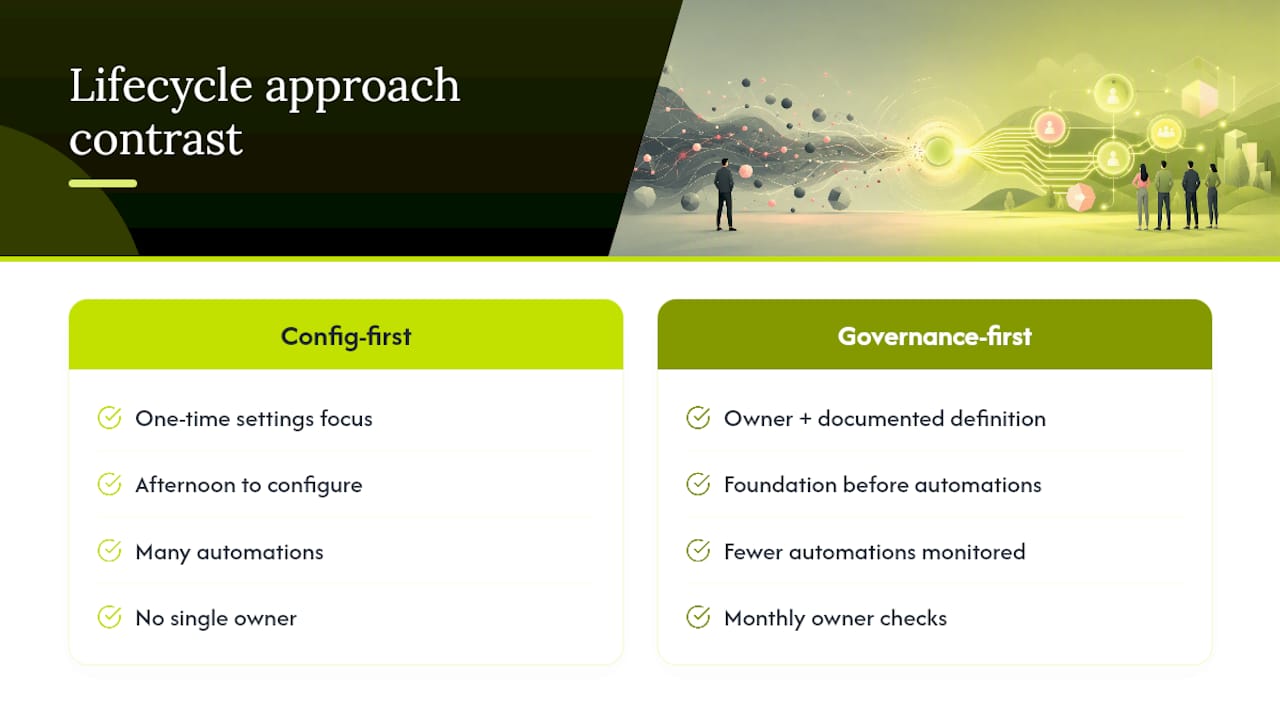
Most of the lifecycle stage complaints we hear (records stuck in the wrong stage, MQL counts that don’t match what sales sees, reports nobody trusts) trace back to a missing owner, not a missing feature. HubSpot gives you every lever you need: sync toggles, pipeline rules, calculated properties, workflow actions. None of that helps if three different tools are writing to the same property with three different sets of rules and nobody’s watching.
Prioritize the owner and the documented definition before you prioritize another automation rule. A lifecycle stage system with fewer automations but one accountable person checking it monthly will outperform a heavily automated setup nobody reviews. Get that foundation right, then layer in B2B SaaS-style automation on top of it, not the other way around.
— Service