5 Tests to Protect Payouts and Margin on Multi Currency Shopify

Yes, Shopify supports multi-currency natively, but only when you run Shopify Payments and configure Markets. That combination lets you show local currencies at checkout while your bank deposits land in whichever payout currency you choose. The real work isn’t turning it on. It’s picking exchange-rate rules, rounding logic, and payout accounts that don’t quietly erode your margin.
TL;DR:
- Using multi-currency on Shopify requires Shopify Payments and configured Markets, with proper exchange-rate rules, rounding, and payout accounts to protect margins.
- Merchants need to manage three distinct currencies: store, presentment, and payout, often using separate bank accounts to avoid conversion fees.
- Manual exchange rates can preserve margins but require regular review, especially for volatile currencies, whereas automatic rates need less maintenance but increase costs.
- Proper testing of checkout, refunds, shipping, and taxes in each currency is critical before launch to prevent costly errors and customer support issues.
- Larger or more complex setups benefit from engineering partners to handle reconciliation, automation, and ongoing operational discipline rather than initial configuration alone.
Table of Contents
- Multi Currency Shopify Setup: Enabling It Through Markets and Payments
- Payouts in Multiple Currencies: What Your Bank Setup Actually Requires
- Automatic vs. Manual Exchange Rates: Which One Protects Your Margin
- Pricing Presentation: Making Converted Prices Look Native
- Storefront and Theme Considerations for Currency Selection
- Testing Checklist and Common Pitfalls Before You Go Live
- When Multi-Currency Shopify Setups Need a Growth Engineering Partner
- The Setup Isn’t the Hard Part
- Get Multi-Currency Shopify Setups Built Right the First Time
- Sources
Multi Currency Shopify Setup: Enabling It Through Markets and Payments
You cannot bolt multi-currency onto a third-party gateway. Shopify’s own documentation is explicit: native multi-currency checkout requires Shopify Payments plus a configured market for each currency you want to sell in. Here is the actual admin path.
- Create the market. Go to Settings, then Markets, then Add Market. Choose the countries or regions you’re targeting and assign the local currency you want customers there to see.
- Activate the currency. Once the market exists, Shopify prompts you to turn on that currency for the market. This controls what shoppers see, not what lands in your bank.
- Enable the payment currency. Go to Settings, then Payments, then Manage Shopify Payments. Add the country or region and enable the matching presentment currency so transactions actually process in it.
- Check plan and verification requirements. Some currencies require business verification, and availability varies by plan tier and region. Confirm both before promising a launch date to your team.
Skip step four and you’ll find out about a plan restriction mid-checkout, which is a bad way to discover it.
Payouts in Multiple Currencies: What Your Bank Setup Actually Requires
Your payout currency is separate from what customers see at checkout, and mixing the two up is where merchants get tripped up. Shopify tracks three distinct currency roles: the store currency you use for admin and reporting, the presentment currency your customer sees, and the payout currency that hits your bank account. They don’t have to match, though conversions and fees kick in when they don’t.
Multi-Currency Payouts let eligible merchants add a separate bank account for each supported payout currency, which sidesteps a conversion fee entirely. But eligibility depends on your region, your plan, and the currency itself, not every merchant qualifies for every currency.
The operational tradeoff comes down to two paths:
- Fewer bank accounts: Shopify converts everything into one payout currency for you. Simpler bookkeeping, but you eat a conversion fee on every sale in a foreign currency.
- One account per payout currency: No conversion fee, but you’re now reconciling multiple bank statements and possibly juggling currency exposure if a currency you’re holding weakens before you move it.
A merchant selling heavily into the Eurozone and the UK, for instance, might justify opening a Euro account and a Sterling account specifically to avoid bleeding a percentage on every transaction. A merchant with occasional international orders usually isn’t worth the banking overhead. Businesses with existing multi-currency banking relationships tend to get the most value from separate payout accounts.
Automatic vs. Manual Exchange Rates: Which One Protects Your Margin
Shopify offers two ways to convert your store currency into what customers see, and picking wrong costs you money in two different directions.
Automatic rates pull current market exchange rates and apply Shopify’s conversion fee on top, adjusting continuously as currencies move. You set it once and never think about it again, but your displayed prices drift with the market, which can look inconsistent to repeat customers.
Manual rates, set per market under Exchange rates with markets, let you lock in a fixed conversion so your converted prices stay stable and the customer-facing conversion fee disappears. The tradeoff is currency drift: if the real exchange rate moves against you and you forget to update it, you’re effectively giving away margin on every order until you notice.
- Automatic rates suit merchants who want zero maintenance and accept the built-in fee.
- Manual rates suit merchants with the discipline to review and adjust regularly.
- A blended approach (manual for your top two or three markets, automatic for the long tail) is common among merchants running dozens of currencies.
Statistic to plan around: merchants relying on manual rates should review volatile currencies daily and stable ones weekly, with alerts set for when a rate diverges past a threshold you define. Skip that cadence and manual rates become a slow leak instead of a control.
One more wrinkle: captured payments use the exchange rate at the moment of capture, not the moment of authorization. If you delay capture (common with pre-orders or backordered items), the rate applied at fulfillment can differ from what was quoted at checkout, and your books need to reconcile that gap.
Pricing Presentation: Making Converted Prices Look Native
A raw currency conversion rarely looks intentional. €47.83 reads like a math error, not a price. Merchants that round converted prices to market-familiar endings, like .99 or .95, or to clean whole numbers in currencies like the Japanese yen, tend to see better price perception and fewer people bailing at checkout.

You have two levers: a global rounding rule applied across your market, or product-level price overrides for items where the rounded conversion still looks odd. Percentage-based adjustments work well for catalogs with thousands of SKUs; manual overrides make more sense for a smaller set of hero products where the price needs to look deliberate.
Direction matters too. Rounding up slightly is usually invisible to shoppers and protects your margin. Rounding down can work as a conversion lever on price-sensitive markets, but it costs you on every single sale, so use it selectively rather than as a default.
Pro Tip: *Test your rounding rule against low, mid, and high price points, and against discounted prices specifically.
Storefront and Theme Considerations for Currency Selection
Geolocation gets most customers into the right currency automatically, but not all of them. Travelers, VPN users, and anyone browsing from a shared office network need a way to correct it themselves. Shopify’s developer documentation recommends building this in deliberately rather than relying on detection alone.
- Add a manual country and currency selector using the localization object so shoppers can override automatic detection.
- Avoid hard-coding URLs in your theme; use Liquid or JavaScript helpers so links route correctly across locales instead of dumping international visitors onto the wrong currency page.
- Set your structured data’s
priceCurrencyfield to match the cart currency, not just your store’s base currency, so search engines index the price a visitor in that market will actually see.
That last point matters more than it looks. A Shopify SEO specialist will tell you that mismatched structured data is one of the more common reasons converted prices show up wrong in search results, confusing shoppers before they even click through.
Testing Checklist and Common Pitfalls Before You Go Live
Multi-currency setups fail quietly. Nobody notices a rounding error or a mistranslated refund email until a customer complains, so test before launch, not after.
- Browse and complete checkout in each currency using a VPN or Shopify’s built-in market preview, not just your home market.
- Confirm order confirmation emails, receipts, and refund notifications display the correct presentment currency, not your store’s base currency.
- Place a test order with a delayed capture and check that the final charge reflects the rate at capture, matching what you’d expect from the authorization estimate.
- Run a discount code through at least two different currency checkouts to confirm the discount applies correctly, not just in your base currency.
- Verify shipping rates and tax calculations display and calculate correctly per market, especially if you use destination-based tax rules.
Pro Tip: Refunds are the most commonly skipped test. If a customer paid in Euros and you refund in your store’s base currency by mistake, you’ve created a support ticket and possibly a currency-loss on the transaction. Test a full refund cycle before you ever process a real one.
When Multi-Currency Shopify Setups Need a Growth Engineering Partner
Most merchants can handle a market or two and a couple of manual rate reviews on their own. The complexity curve gets steep once you’re running a dozen currencies, reconciling payouts across multiple bank accounts, or feeding order data into an ERP that expects a single reporting currency.
That’s usually the point where custom rounding logic, product-level pricing overrides, and finance-system integrations stop being a spreadsheet problem and start being an engineering problem. It’s also where reconciliation headaches, mismatched captured-payment records, and manual rate drift start costing more in staff time than a proper build would have.
Quicktoimpress works with multi-location and enterprise commerce teams on exactly this layer: Shopify and BigCommerce engineering, payout and reconciliation automation through revenue operations, and the integration work that connects Shopify Markets to the finance stack behind it. As global retail e-commerce keeps expanding, more merchants will hit this complexity ceiling sooner than they expect.
The Setup Isn’t the Hard Part
Every merchant asks the same question first: can I even do this on Shopify? That’s the easy part, and the answer is yes almost every time. The part nobody budgets time for is the ongoing decision-making: which currencies get manual rates, how often someone actually checks them, whether your rounding rule still makes sense after a price increase, whether your refund flow was ever tested against a real customer dispute.
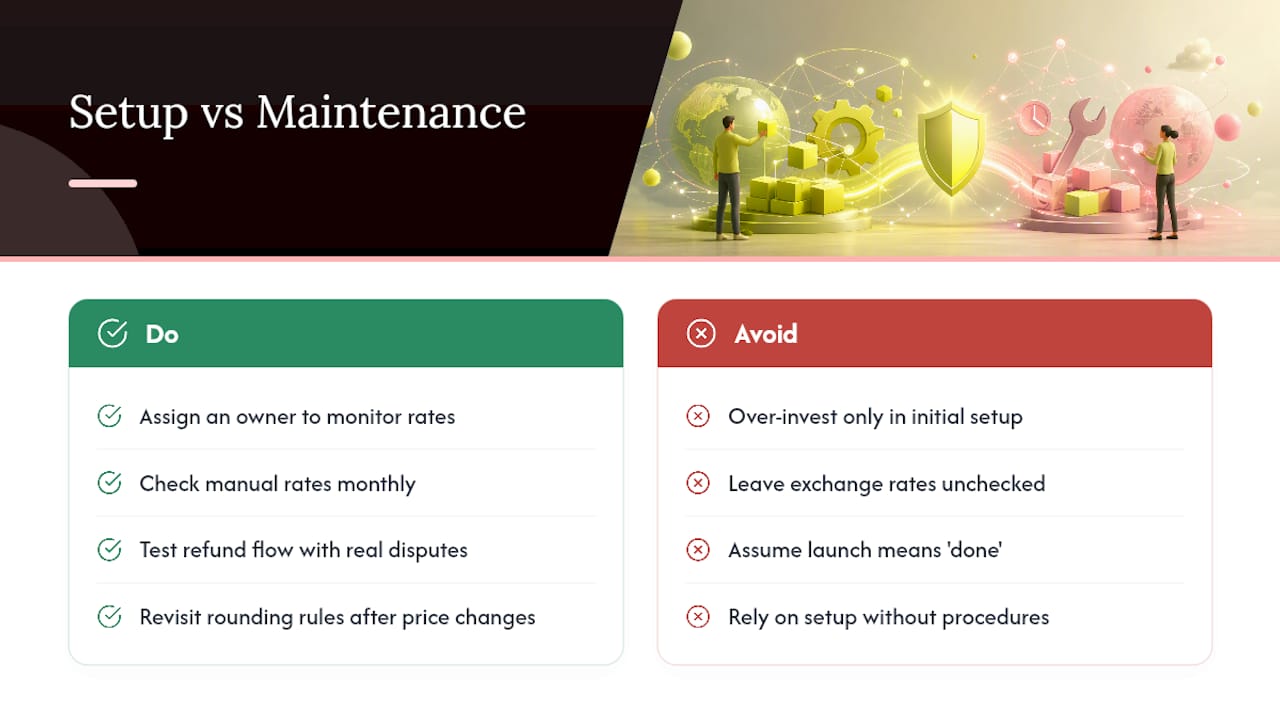
What surprises most merchants is that multi-currency rarely breaks at launch. It breaks three months later, when the person who set it up moves to a different project and nobody’s watching the exchange-rate drift anymore. The tooling is genuinely solid. The gap is almost always operational discipline, not technical capability.
If there’s a contrarian take here, it’s this: don’t over-invest in the initial setup and under-invest in the maintenance plan. A perfectly configured market with no one reviewing manual rates monthly will cost you more over a year than a slightly rougher setup that someone actually checks on schedule.
— Service
Get Multi-Currency Shopify Setups Built Right the First Time
Quicktoimpress is the alternative to hiring a generalist agency for multi-currency Shopify work: you get engineers who build the Markets configuration, the payout reconciliation, and the finance integrations together, instead of three vendors handing off a project that nobody fully owns.
If your store is juggling more than a couple of currencies, feeding payout data into an ERP, or you’ve inherited a rounding scheme nobody can explain anymore, that’s a sign the DIY phase is ending. Quicktoimpress works with multi-location brands, B2B SaaS companies, and enterprise commerce teams to build the growth platforms and revenue operations systems that keep multi-currency Shopify stores accurate as they scale, without the guesswork of managing it all in spreadsheets. Reach out through Quicktoimpress to talk through your current setup and figure out what actually needs to be rebuilt versus what’s already working.
Sources
- Multi-currency — Shopify Help Center
- Support multiple currencies and languages — Shopify developer docs