Shopify Flow Automation: Triggers, Templates, and Best Practices

Shopify Flow is the visual, no-code automation platform built into Shopify that runs event- or schedule-driven workflows to automate inventory, fraud checks, fulfillment, and marketing tasks. It’s included on Basic, Grow, Advanced, and Shopify Plus plans, but you still need to install the free Flow app from the Shopify App Store before you can build anything.
Your first move once it’s installed:
- Browse the template library for a workflow close to what you need
- Or open a blank canvas and let Sidekick draft one from a plain-language prompt
Key Takeaways
Shopify Flow automates inventory, fraud, fulfillment, and retention tasks through triggers, conditions, and actions, but reliable automation at scale requires testing, idempotency guards, and often outside engineering support.
| Point | Details |
|---|---|
| Install before building | Flow ships free on Basic, Grow, Advanced, and Shopify Plus plans, but requires a separate app install. |
| Start from templates | Import a template or prompt Sidekick, then verify triggers and operators before activating. |
| Watch the 100-item limit | Get data actions return a maximum of 100 records, so filter queries tightly for large stores. |
| Test before you trust | Use test-run previews and run history to catch branching errors before they touch real orders. |
| Guard against duplicates | Check a metafield or tag before any state-changing action to avoid duplicate emails or discounts. |
| Bring in help at scale | Quicktoimpress supports merchants who need Flow wired into CRM, ERP, and enterprise-grade reliability. |
Table of Contents
- What Is Shopify Flow Automation and Who Can Use It?
- How Do Templates and Sidekick Speed Up Workflow Building?
- Can Shopify Flow Handle Scheduled and List-Based Automations?
- Extending Flow With Code: When and How to Use Run Code
- How Do You Test and Troubleshoot a Flow Workflow?
- Five Shopify Flow Templates You Can Import Today
- When Should You Hire a Growth Engineering Partner?
- Frequently Asked Questions
- Sources
What Is Shopify Flow Automation and Who Can Use It?
Flow ships free with every plan above Starter, so most merchants already have access and just haven’t installed it—making Shopify SEO Automation easier to implement for your store. The catch: Flow’s interface and logic are English-only, which matters if your team operates in another language day to day.
Once installed, every workflow follows the same three-part structure: a trigger fires (an order is created, inventory drops, a customer places their fifth order), a condition checks whether the situation warrants action, and an action executes if it does. You build all three on a visual canvas using drag-and-drop blocks, no code required.
Two paths into that canvas:
- Templates — pre-built workflows for common jobs like low-stock alerts or VIP tagging, ready to import and adjust
- Manual build — start blank when your logic is specific enough that no template fits
For a first automation, import a template and edit it rather than building from scratch. You’ll learn the block logic faster by modifying something that already works.
How Do Templates and Sidekick Speed Up Workflow Building?
Templates live inside the Flow app under a dedicated gallery, sorted by category: inventory, orders, customers, marketing. Import one, and Flow drops the trigger, conditions, and actions onto your canvas pre-wired. You just swap in your specific values, like a stock threshold or a customer tag.
Sidekick goes a step further. Describe what you want in plain English, something like “notify my ops channel when an order over $500 has a mismatched billing and shipping address,” and Sidekick assembles a working draft. It’s fast, but Sidekick can’t read your business logic, only what you typed. Treat every generated workflow as a first draft, not a finished product.
Before activating anything Sidekick or a template produces:
- Check the trigger actually fires on the event you expect, not an adjacent one
- Confirm comparison operators (greater than versus greater than or equal to trips up more workflows than any other mistake)
- Replace every placeholder value, especially tags, email addresses, and thresholds copied from the template’s example
- Run a test before you flip it live
One trigger choice deserves special attention: if your workflow depends on fraud or risk data, use the “Order risk analyzed” trigger instead of “Order created,” since risk fields populate asynchronously and won’t be ready the instant an order comes in.
Pro Tip: Duplicate a template before editing it. If your changes break the logic, you’ve still got the original to compare against.
Can Shopify Flow Handle Scheduled and List-Based Automations?
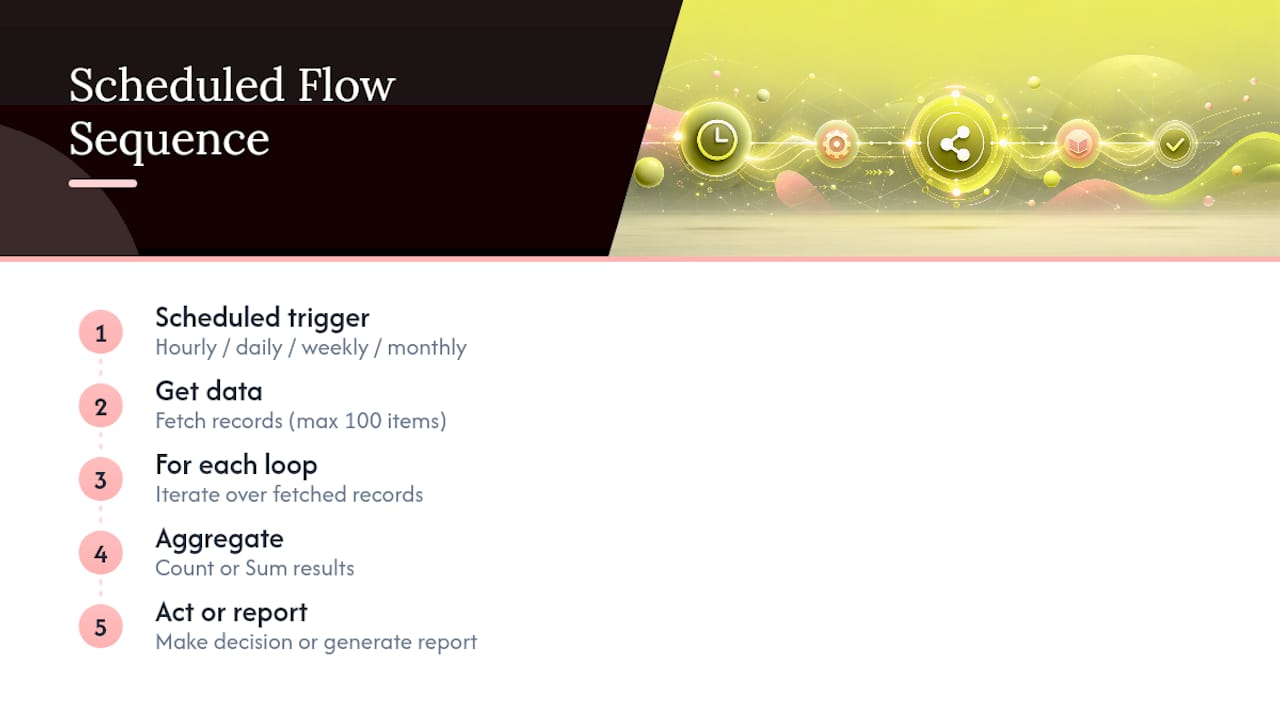
Yes, and this is where Flow moves from “handles single events” to “runs your operations.” Scheduled triggers fire on a recurring basis, hourly, daily, weekly, or monthly, which makes them the backbone of any report or check that doesn’t wait for a customer action.
Common patterns include scheduled triggers that run daily, weekly, or monthly to pull unfulfilled orders, check for products below reorder thresholds, or tag dormant customers for win-back campaigns.
The mechanism behind all three is the same: a Get data action fetches records from your store, a For each loop iterates through them, and an aggregation action like Count or Sum turns the list into a single number you can act on or report. One limit worth planning around: Get data actions return a maximum of 100 items per query. If you’re summarizing a busy store’s daily orders, filter your query tightly (by status, by date range) rather than pulling everything and hoping the cap doesn’t bite you.
Extending Flow With Code: When and How to Use Run Code
The no-code blocks cover most merchant needs, but they hit a ceiling fast once you need a calculation Flow doesn’t have a block for, or a call to a system outside Shopify. That’s what the Run code action is for. It runs custom JavaScript and GraphQL inside your workflow, letting you query data Flow’s standard actions can’t reach or push information to an external API.
Before you write a single line inside the Flow editor, test it locally. Shopify publishes a public repository of Run code examples with input and output GraphQL files, working JavaScript, and test suites you run with npm test. Clone one close to your use case and modify it there, not inside Flow’s editor.
A few habits that separate reliable custom code from code that breaks silently in production:
- Keep every snippet in a Git repository, not just in Flow’s editor. Flow doesn’t give you full version history for code blocks, so source control is your only rollback path.
- Tag releases so you can trace exactly which version ran when something goes wrong.
- Pair any Run code action that changes state (creates a discount, updates a metafield) with an idempotency check, more on that below.
Pro Tip: If a Run code action calls an external API, log the response inside the workflow. When a third-party service goes down at 2 a.m., that log is the only way you’ll know it wasn’t your logic that failed.
How Do You Test and Troubleshoot a Flow Workflow?
Every workflow deserves a dry run before it touches live data, and Flow finally makes that easy. Test-run previews simulate execution against sample data so you can see which branch conditions evaluate true or false without risking a real customer record or a real inventory update. For anything with fraud logic or multiple conditional branches, this step catches the errors that would otherwise show up as angry support tickets.
To keep a workflow healthy after launch:
- Check run history regularly. Every execution logs the actions it took, which makes it your first stop when a customer says they never got an expected email.
- Retry failed runs manually from that history rather than rebuilding the workflow from scratch.
- Cancel failing runs, individually or in bulk, the moment you spot a pattern. During a flash sale or a traffic spike, a broken workflow can queue hundreds of failed executions in minutes, and bulk cancellation stops that cascade before it clogs your queue.
Pro Tip: Set a calendar reminder to review run history weekly for your highest-volume workflows. Silent failures are the ones that cost money, because nobody notices until a customer complains.
Five Shopify Flow Templates You Can Import Today
These five cover the automations merchants ask for most. Each maps to a specific outline you can build from a template or hand to Sidekick as a prompt.
- Daily low-stock summary. Scheduled trigger, runs each morning. Get data pulls products under your reorder threshold, For each loop tags them, and a Slack or email action sends the list. Bonus: pair it with a second workflow that hides out-of-stock products from your storefront automatically.
- High-risk order hold. Triggered by “Order risk analyzed” rather than “Order created,” since risk scoring needs time to populate. Condition checks for high risk level, action tags the order and holds fulfillment for manual review.
- VIP customer tagging. Triggered on order creation, condition checks lifetime order count or spend, action tags the customer as VIP and can kick off a lifecycle email sequence in your email platform.
- Fulfillment SLA guardrail. Scheduled trigger checks unfulfilled orders against your promised ship date, action notifies your ops channel when an order is at risk of missing it.
- Daily draft-order or chargeback digest. Scheduled trigger, Get data pulls open drafts or new chargebacks, Count aggregates them, and a Slack message gives your ops team a number to act on before it becomes a backlog.
When Should You Hire a Growth Engineering Partner?
Flow handles a lot on its own, but a few signs mean it’s time to bring in outside engineering help: workflows that need to run concurrently without colliding, integrations spanning three or more platforms, or enterprise SLAs where a failed automation means real revenue loss.
A growth engineering partner brings:
- A roadmap that sequences automations by business impact, not build difficulty
- Integration work connecting Flow to your CRM, ERP, or revenue operations stack
- Ongoing reliability monitoring so failures get caught before customers notice
Scope the engagement around specific outcomes: which workflows, which systems, which failure modes matter most, particularly relevant for enterprise commerce teams running Flow at scale.
A Practitioner’s Note on Testing and Guardrails
The workflows that break in production almost never fail on logic. They fail because someone assumed a workflow would run exactly once per order, and it didn’t. Idempotent design fixes this.

Checklist item to add today: before any action that changes state, check a guard metafield or tag first, and skip the action if it’s already been applied.
How Quick To Impress Supports Teams Scaling Past Flow’s Limits
Merchants outgrow the visual canvas the moment automation stops being a side project and becomes core to how orders, inventory, and customer data move. That’s the gap Quicktoimpress fills: hands-on Shopify engineering and ongoing automation ownership, not a one-time build you’re left to maintain alone.
We work directly inside your Shopify and BigCommerce stack, wiring Flow into your CRM, your revenue operations tools, and the internal systems Flow’s blocks were never built to reach. For teams managing multi-location brands or complex B2B catalogs, that often means Run code actions, custom integrations, and monitoring nobody on a marketing team has time to build alone.
If your automation needs have outgrown what a template can solve, see how we work and what an engagement costs.
Frequently Asked Questions
Does Shopify Flow cost extra on top of my plan? No. Flow is free to install on Basic, Grow, Advanced, and Shopify Plus plans. You just need to add the app from the Shopify App Store.
Can Shopify Flow automation replace a developer entirely? For most inventory, fulfillment, and marketing automation, yes. Once you need custom API calls or complex concurrency handling, the Run code action and outside engineering support become necessary.
What’s the safest way to test a new Flow workflow? Use a test-run preview to simulate execution against sample data first, then check run history after activation to confirm behavior on live orders.
Why did my Flow workflow send duplicate notifications? This usually happens when a workflow triggers more than once on the same object without a guard check. Add a metafield or tag check before any state-changing action to prevent it.
Is Shopify Flow available in languages other than English? No. Flow’s interface and workflow logic currently run in English only, which is worth planning for if your team operates in multiple languages.
Sources
- Workflow Automation made easy with Shopify Flow - Shopify
- Creating workflows in Shopify Flow - Shopify Help Center